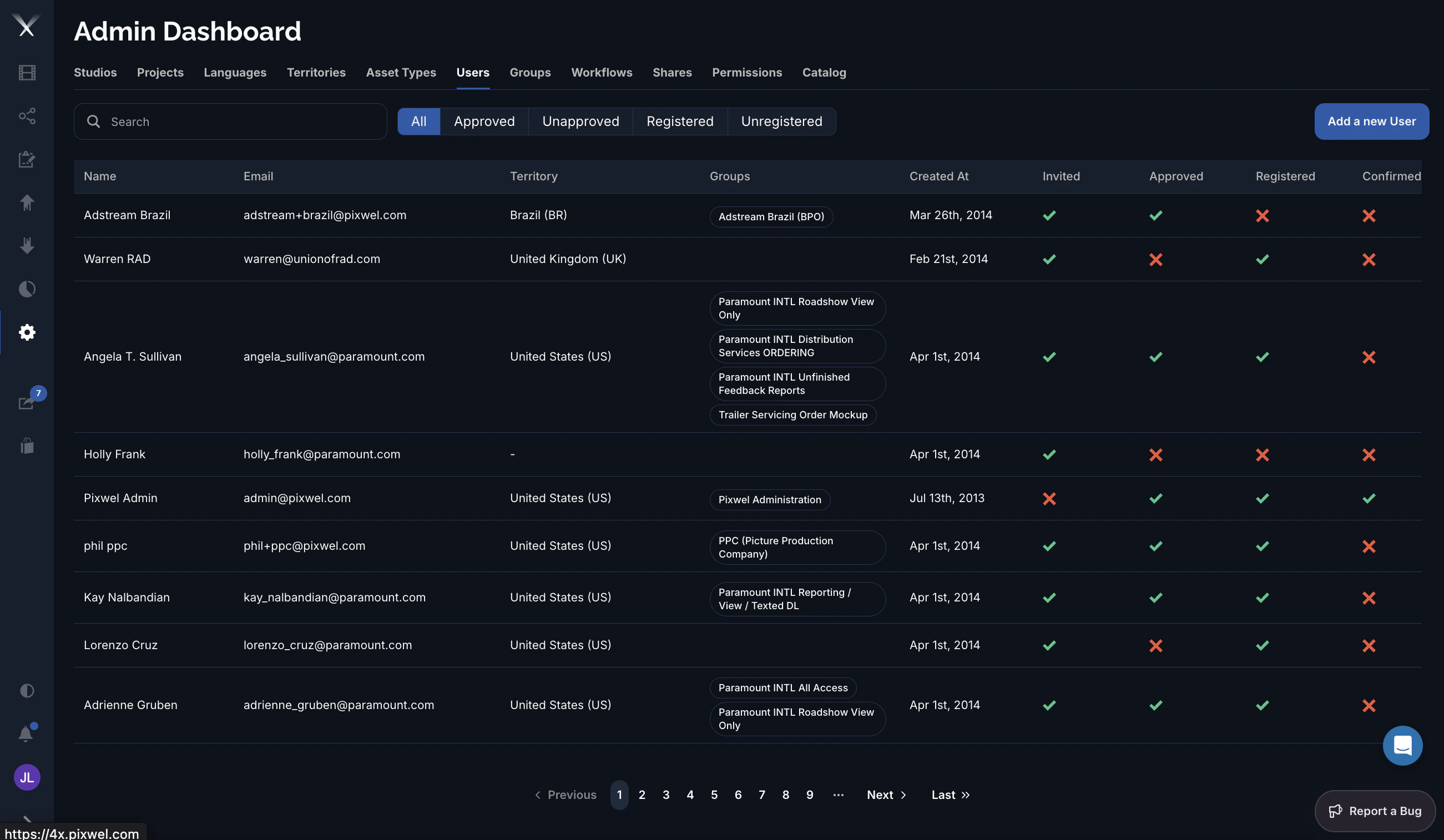
The Users tab on the Admin Dashboard manages the people on the platform: creating accounts, assigning them to groups, and tracking where each account is in the invitation and approval lifecycle. A user’s role and what they can do comes from the groups they belong to — see User roles.
The Admin Dashboard Users tab listing users with territory, groups, and Invited/Approved/Registered/Confirmed status

Filtering

Above the list, filter chips narrow it by lifecycle state: All, Approved, Unapproved, Registered, and Unregistered. Combine these with Search to find an account quickly.

Columns

ColumnWhat it is
NameThe user’s full name.
EmailThe login email (also the username).
TerritoryThe territory the user is associated with, if any.
GroupsThe groups the user belongs to, shown as tags.
Created AtWhen the account was created.
Invited / Approved / Registered / ConfirmedThe account’s lifecycle flags (see below).
ActionsImpersonate, Edit, Delete.

Editing a user

The user form has these fields:
  • Full Name
  • Email — set at creation and locked when editing.
  • Territory — the user’s associated region.
  • Groups — the groups the user belongs to; this is how membership is granted.
  • Approve — marks the account as approved.

Account lifecycle

A standard (member) account becomes fully enabled once it is invited, approved, registered, and confirmed. A guest account — a limited account invited to specific shares — is enabled once it is approved. The four status icons in the list let you see at a glance where any account is in that process.
Impersonate lets an administrator view the platform as that user — useful for diagnosing access problems. What a user can see and do is governed by their groups and permissions, not set directly on the user.