

Available reports
| Report | What it shows |
|---|---|
| Orders | Individual work requests with their asset, studio, project, status, and history. |
| Order Volume | Order counts aggregated by asset, project, or studio. Drill in to the underlying orders. |
| Offline Rejection | Work that was rejected, with the asset and rejection details. |
| Encodes | Encoding jobs, with file names, presets, size, duration, and status. |
| Group Spending Summary | Total spend per group — useful for tracking budgets. |
| Group Exceptions | Groups that have crossed spending or other thresholds. |
| Downloads | Every file download, with the user, group, project, asset, and timestamp. |
| Feedback | Votes, comments, and “would order” responses from shares, by asset and aspect ratio. |
| Feedback Stats | Feedback rolled up across shared assets. |
Analytics and AI Insights
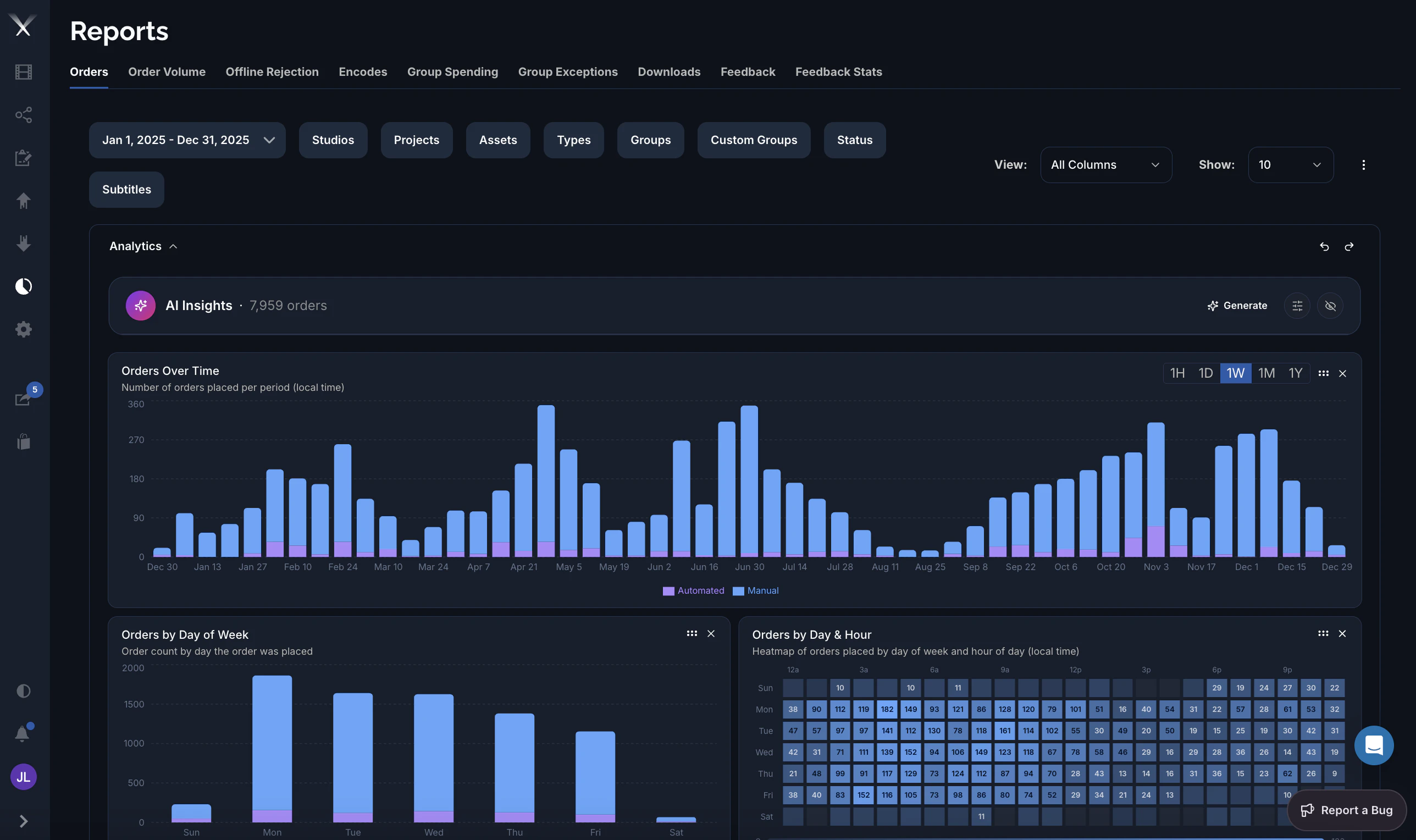
Above the results table, a report can show an Analytics panel — a set of charts visualizing the filtered data. On the Orders report these include Orders Over Time (orders per period, split into automated and manual), Orders by Day of Week, and an Orders by Day & Hour heatmap. The charts follow whatever filters and date range you’ve set, and time buckets can be switched (1H / 1D / 1W / 1M / 1Y). AI Insights sits at the top of the Analytics panel. Press Generate and Pixwel produces a written, plain-language summary of the report — surfacing trends, peaks, and notable patterns across the data set you’re looking at.Who can see them
Reports are permission-controlled. Administrators can see all reports; everyone else sees only the reports their group has been granted (for example work request, download, or feedback reporting). See User roles for how those permissions work.Working with a report
Once you’re in a report you can:- Filter by project, studio, asset type, date range, group, and other fields
- Sort by clicking column headers, and page through results
- Customize columns and save view presets
- Export the filtered results as CSV or PDF