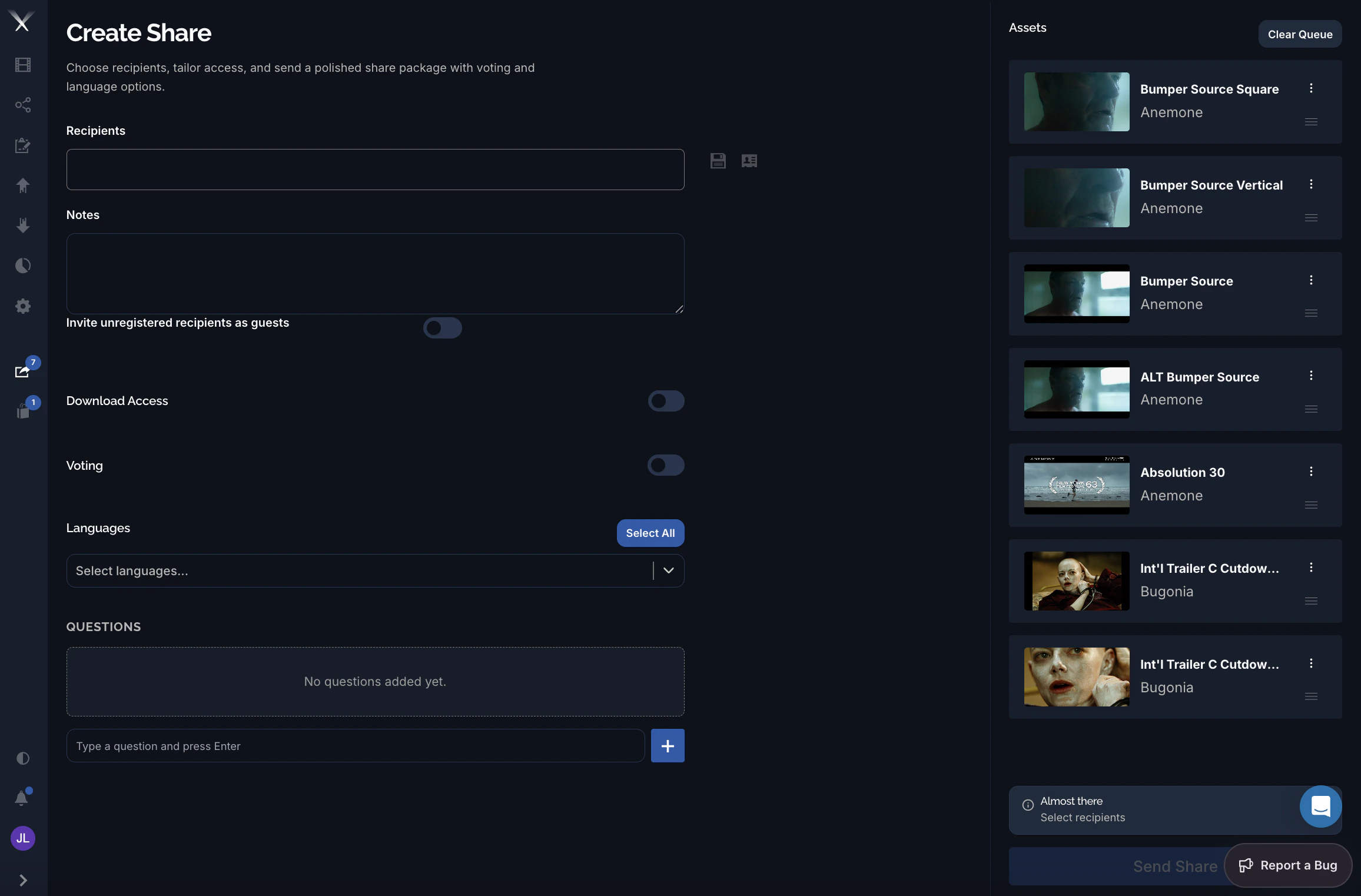
Who you can share with
- Internal users and groups — other people on the platform, by name or by team.
- External guests — people who aren’t on Pixwel yet. If you have permission to invite guests, entering an unknown email address invites that person as a guest and emails them a link. Guests only ever see what’s shared with them.
Anonymous shares
Pixwel also supports anonymous shares — shares that recipients can open without an account or sign-in. Because they let assets reach anyone with the link, creating one is a restricted capability: only users whose group has been granted the anonymous-share permission can make them.Anonymous sharing is permission-gated. If you don’t see the option, your group hasn’t been granted it — an administrator controls who can create anonymous shares.
What you control
When you build a share, you decide what recipients can actually do:- Languages — narrow the share to specific localized versions.
- Usages and variants — what kinds of files recipients can get (online, broadcast, theatrical/DCP, print) and variants like texted/textless or flattened/layered. These determine which files are downloadable.
- Downloading — whether recipients can download the files at all, or only preview them.
- Re-sharing — whether recipients can pass the assets on without further approval.
- Expiry — when the share (or its feedback window) closes. After expiry it becomes read-only.
Feedback and voting
A share can collect feedback. Recipients can vote an asset up or down, leave comments, and indicate whether they’d order a localized version — useful for gauging interest before committing to localization work. You can attach questions recipients answer before submitting, and set a date when feedback closes. Results feed the feedback report.The Share Queue
You assemble a share in the Share Queue — a staging area where you collect assets, choose recipients, set languages, usages, and feedback options, then send. Until you send it, nothing leaves the platform.