Preferences are your personal settings. They apply to your account only — not to anyone else, and not to the platform as a whole (that’s the Admin Dashboard).
To open them, click your avatar in the lower-left, then the cog (settings) icon. The Preferences dialog has five tabs: Notifications, Ingest, Profile, Custom Groups, and API Tokens. Changes take effect when you click Save Preferences; Cancel discards them.
Notifications
Controls the emails Pixwel sends you. The master Email Notifications checkbox turns email on or off for your account — when it’s off, every setting below is disabled.
For each kind of event, choose how often you want to be emailed:
| Frequency | What it does |
|---|
| Immediate | Email as soon as the event happens. |
| Hourly | Batched into an hourly digest. |
| Daily | Batched into a daily digest. |
| Weekly | Batched into a weekly digest. |
| Off | No email for this event type. |
| Setting | Emails you when… |
|---|
| New / Updated Projects | A project you can see is created or changed. |
| New / Updated Assets | An asset is created or changed. |
| Workflow | A work request changes workflow phase. |
| Embargoes | A file’s embargo changes. |
| Shares | Something is shared with you. |
| Order Status | A work request’s status changes. |
| Order Graphics Materials | Graphics materials are added to an order. |
| Order Graphics Materials Comments | Someone comments on order graphics materials. |
| Order Discussion Comments | Someone comments in an order’s discussion. |
| Order Preview Comments | Someone comments on an offline preview. |
| Ingest | An ingest you started finishes. |
| Others | Miscellaneous notifications not covered above. |
Below the frequency settings you can mute specific projects or asset types — pick them in the “notifications disabled” multi-selects to stop emails for just those, while keeping everything else on.
Ingest
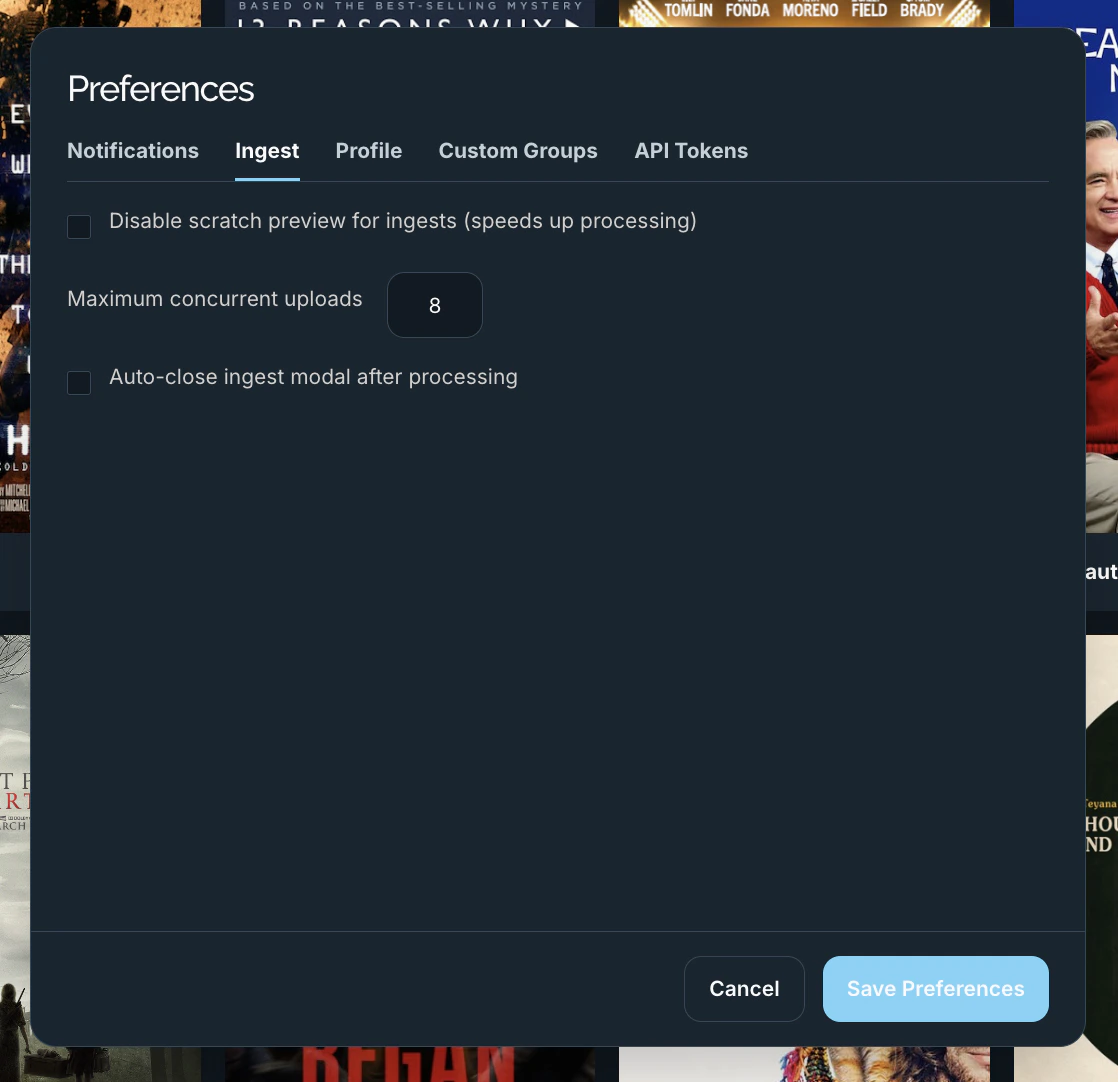
Defaults for how the ingest uploader behaves for you.
| Setting | What it does |
|---|
| Disable scratch preview for ingests | Skips generating a scratch preview during ingest, which speeds up processing. |
| Maximum concurrent uploads | How many files upload at once. Lower it if your connection is bandwidth-constrained. |
| Auto-close ingest modal after processing | Automatically dismisses the ingest dialog once processing completes. |
Profile
Your account identity.
| Field | Notes |
|---|
| Two Factor Authentication | Toggle 2FA on your account. If your organization or studio enforces 2FA, this is locked on and shows a note. |
| Name | Your display name — read-only here. |
| Email Address | Your login email — read-only here. |
| Territory | The territory you’re associated with. |
Name and email are managed by an administrator on the Users tab, so they’re shown here for reference but can’t be edited from Preferences. Custom Groups
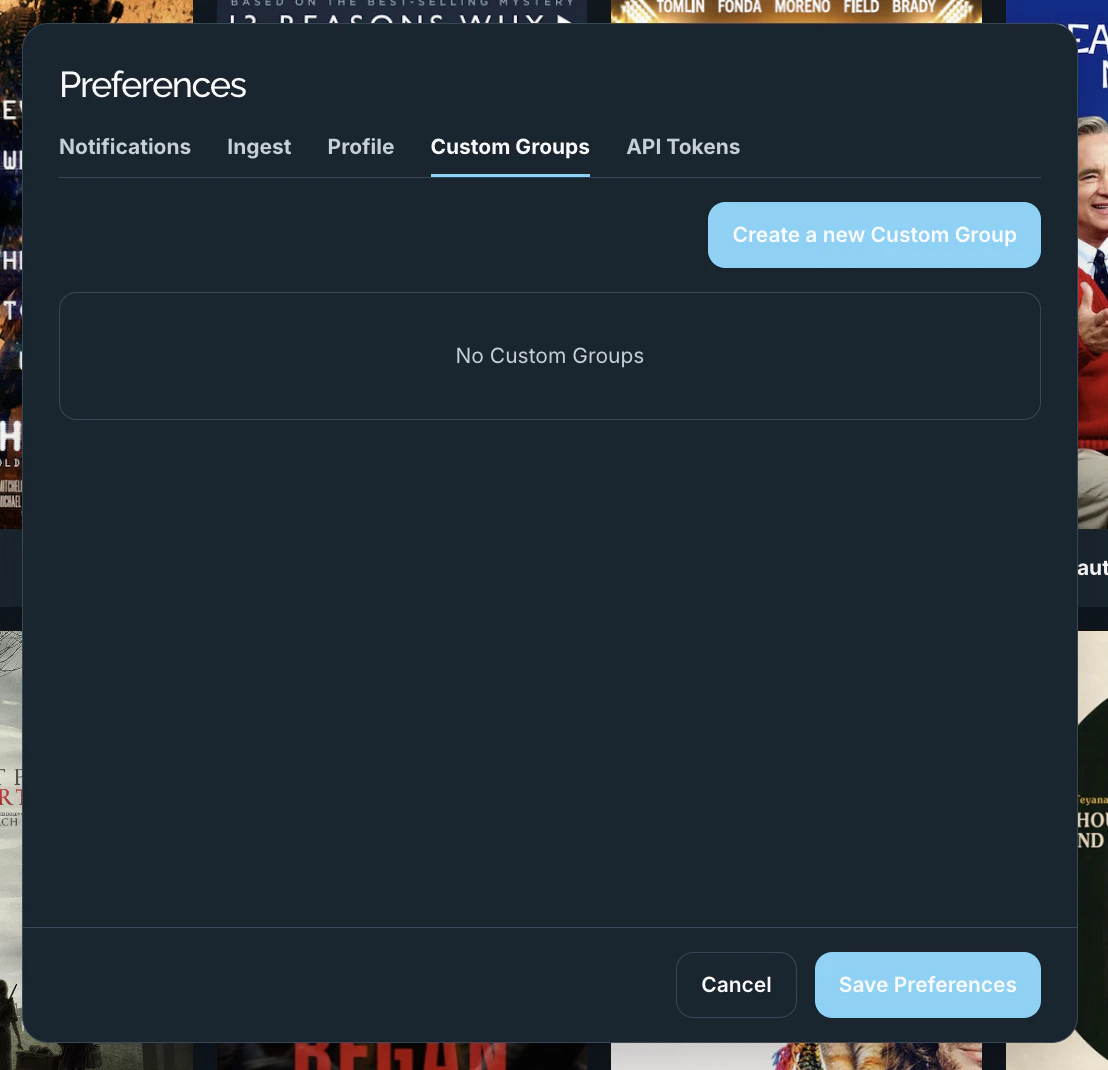
Custom Groups are your own reusable contact lists for sharing. Instead of picking the same people every time, save them as a named group and select it when you create a share.
- Create a new Custom Group opens a form with a Name and a list of recipients.
- Recipients can be platform users, plain email addresses (for people outside the platform), and existing groups.
- Each saved group can be edited or deleted from the list. When you have none, the tab shows No Custom Groups.
API Tokens
API tokens (personal access tokens) let scripts and integrations call the Pixwel API as you.
A token acts on your behalf with your full account permissions. Treat it like a password — the value is shown only once, when you create it.
Creating a token
- Enter a Name that describes where it’s used (for example
ci-deploy).
- Choose an Expires in period — 30, 60, 90, 180, or 365 days.
- Click Create token.
The full token is then shown once, along with a ready-to-use Authorization: Bearer … header. Copy it immediately and store it somewhere safe — you won’t be able to see it again.
Managing active tokens
The Active tokens table lists your existing tokens:
| Column | What it shows |
|---|
| Name | The name you gave the token. |
| Token | A non-secret prefix (for example pat_9756bb3b…) so you can tell tokens apart. |
| Last used | When the token last made a request (or — if never). |
| Expires | When the token stops working. |